For agencies & web teams
Stop wasting your team’s time on image prep.
Every gallery, carousel and client folder brings another round of cropping, resizing and compression. Give your team one visual workspace to get the whole batch ready.
No account needed to try it. Teams adds Pro tools across your browsers and client sites.
I built Squishify to bring the tools together — bulk processing with a designer’s visual control, so nobody spends the afternoon handling files one by one.
 XavierMaker of Squishify
Small tasks. Whole collections. Every client.
The mockup shows a few images.
The prep work keeps going.
The design establishes the look. Then comes the full gallery, the remaining carousel slides and every image behind “view more.” Crop, resize, rename, convert, compress. Repeat across the collection, then again for the next client.
Separate tools. Repeated handoffs.
Each step gets the images ready for the next tool.
- Crop & editOpen the images and adjust the framing.
- ResizeMove the files over to set the dimensions.
- RenameOrganize the filenames for the site.
- Convert & compressPrepare another export for the web.
One batch. One visual workspace.
Bring the client’s images in. Prepare them together. Export.
Bulk processing, with an eye for the details
Move the batch forward.
Keep control of the details.
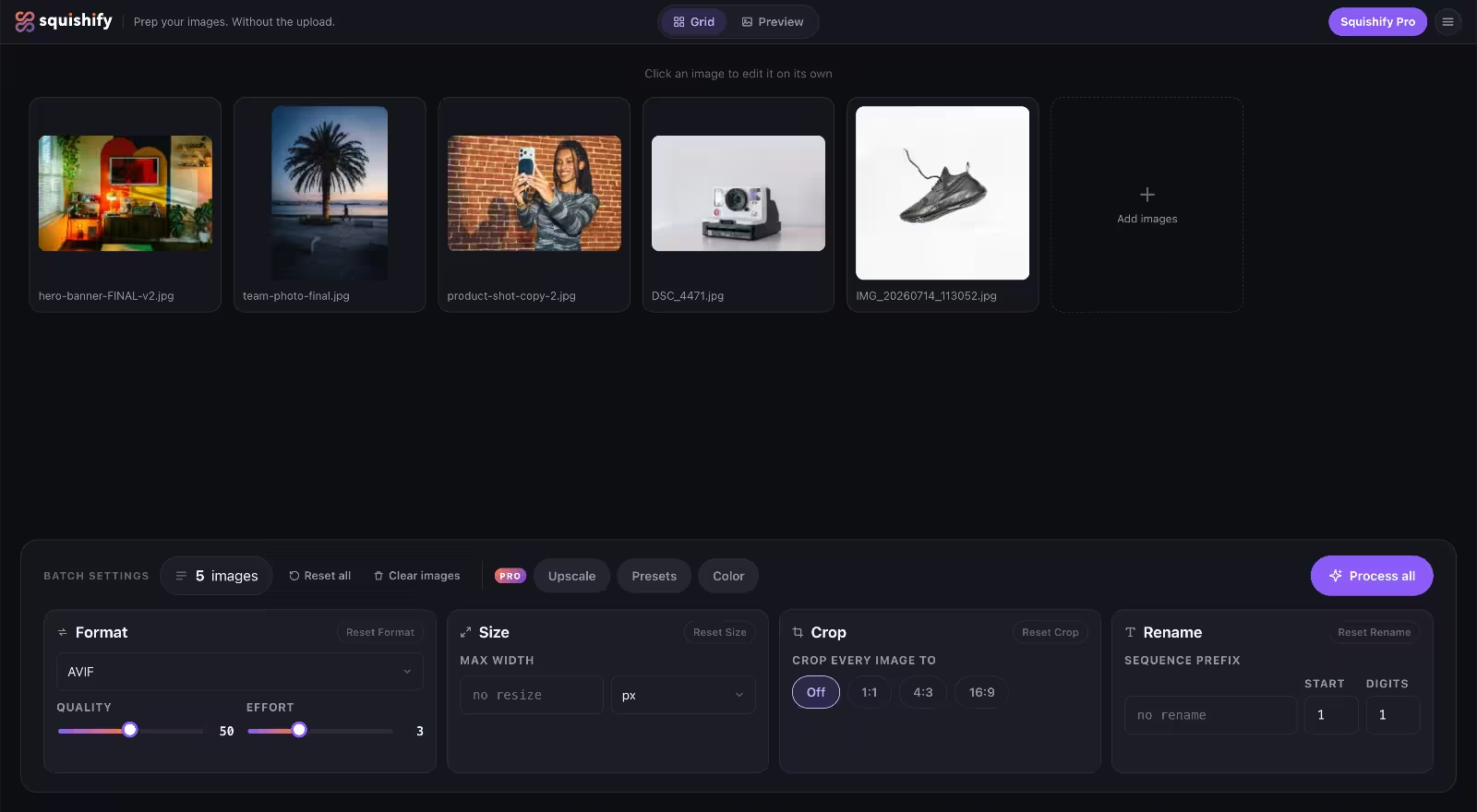
See the batch in Grid
Bring the client’s images into one queue. See the collection together instead of opening files one at a time. iPhone HEIC photos, scanner TIFFs and Photoshop PSDs open as sources, so a client folder goes in as it arrives.
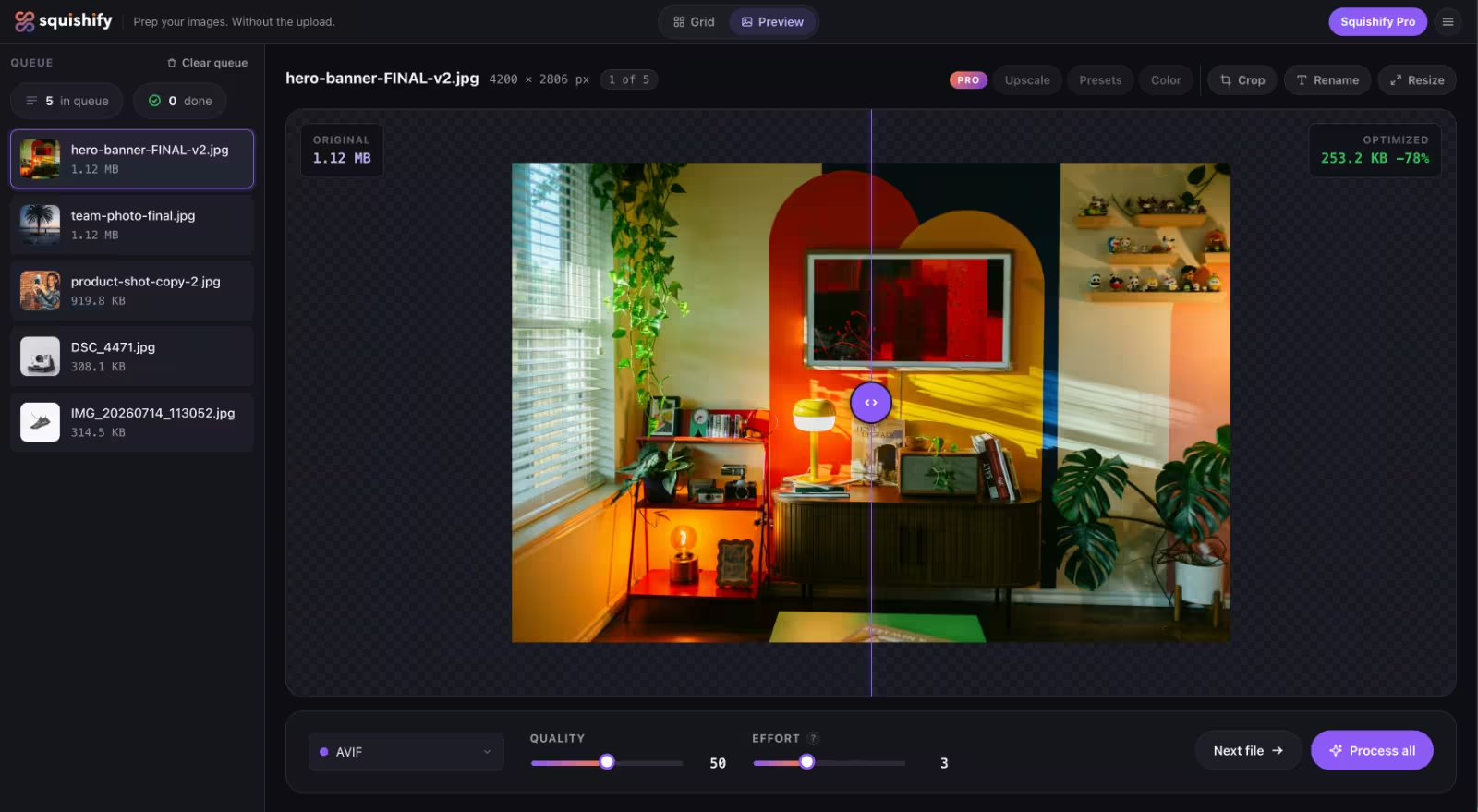
Refine an image in Preview
Take a closer look, adjust the crop and compare the result. Switch views on the same queue whenever an image needs individual attention.
Process the batch together
Set dimensions, apply batch naming, choose the output format and compression, then download the finished files as a ZIP.
The free app covers the basics. Teams includes the Pro tools shown, including watermarking and Palette for pulling a client’s colours out of their own images. Explore individual tools in the guide.
Two views. One queue.
A visual workspace for whoever has the images to prepare.
See the collection at a glance, then get close enough to make the right call on a crop or compression setting. Your team gets visual control alongside the tools to handle a batch.
 WordPressMedia Library, Image and Gallery blocks
 Advanced Custom FieldsImage and Gallery fields, repeater rows included
 FileBirdUploads land in the media folder you have selected
For the sites your agency runs
Use WordPress?
Prepare first, upload second.
Open Squishify inside wp-admin, prepare the images, and send the finished files straight to the Media Library.
WP Pro also works with Gutenberg Image and Gallery blocks and ACF image fields, so your team can prepare assets where they’re already building.
Processing happens in the browser. Client images aren’t sent to Squishify’s servers. In WordPress, the finished files upload to your own site when you’re ready.
Reviews
What people are saying
“Overall this concept and execution of Squishify is phenomenal work. This is truly a great idea executed perfectly.”
… “Accessibility is exceptional with keyboard access and tab controls working for all interfaces.”
“I have used TinyPNG for more than 8 years, but Squishify just replaced it in my workflow. It’s literally TinyPNG on steroids. Being able to batch compress, convert, and resize images completely locally in the browser is brilliant. Great job”
“I run a bunch of product shots through this before they go anywhere — drag in a folder, pick a format, and it spits out a smaller version without me installing anything or uploading to some random site. The before/after preview is what sold me, I could actually see what I was trading off.”

Squishify Teams
One image workflow for your entire web team.
Give designers, developers and content managers one workflow for the image prep that repeats across client projects. Bulk tools handle the collection; visual controls let whoever is building or updating the site finish the details. One annual purchase covers your team’s browsers and client WordPress sites.
- 30 browser activations for the web app
- Unlimited WordPress Pro installs across client sites
- Named seats and one manage page to see and free activations
- 100 images per batch, and new batches that keep your settings and rename numbering
$250 USD / year
Billed annually. One license key. No teammate accounts to create.
A seat is an activated browser profile, not a person. A laptop and desktop use two activations.
FAQ
Questions, answered
Can we try the workflow before buying?
Yes. Open the free web app and try it on a batch of client images, without an account. Teams includes additional Pro tools; the free app isn’t a trial of Teams licensing. The guide shows which tools are free and which need Pro.
Do we need to use WordPress?
No. Prepare images in the browser and download them for any website or CMS. The WordPress plugin is included for the client sites that use it.
Does everyone work in a shared project?
No. Teams shares a license, not an image library or editing session. Each teammate prepares images in their own browser. Your existing folders and handoff process still handle collaboration.
Does someone need to be a designer to use it?
No. Grid and Preview let the person building or updating the site see what they’re working on, adjust individual images and process the batch. A content manager can prepare the rest of a gallery without asking a designer to export every image. Design tools still handle original artwork and complex retouching.

Less time preparing assets.
More time building websites.
The full gallery. Every carousel slide. The next client folder.
Get them ready in one visual workflow.